How to Reset Your Password: A Step-by-Step Guide
How to Reset Your Password: A Step-by-Step Guide
In this article, we will explore simple and effective methods to reset a password for your account. Forgetting a password can be frustrating, but with the right steps, you can regain access to your account quickly and easily. Let's dive into the password reset process and learn how to do it seamlessly.
Locating the Password Reset Option
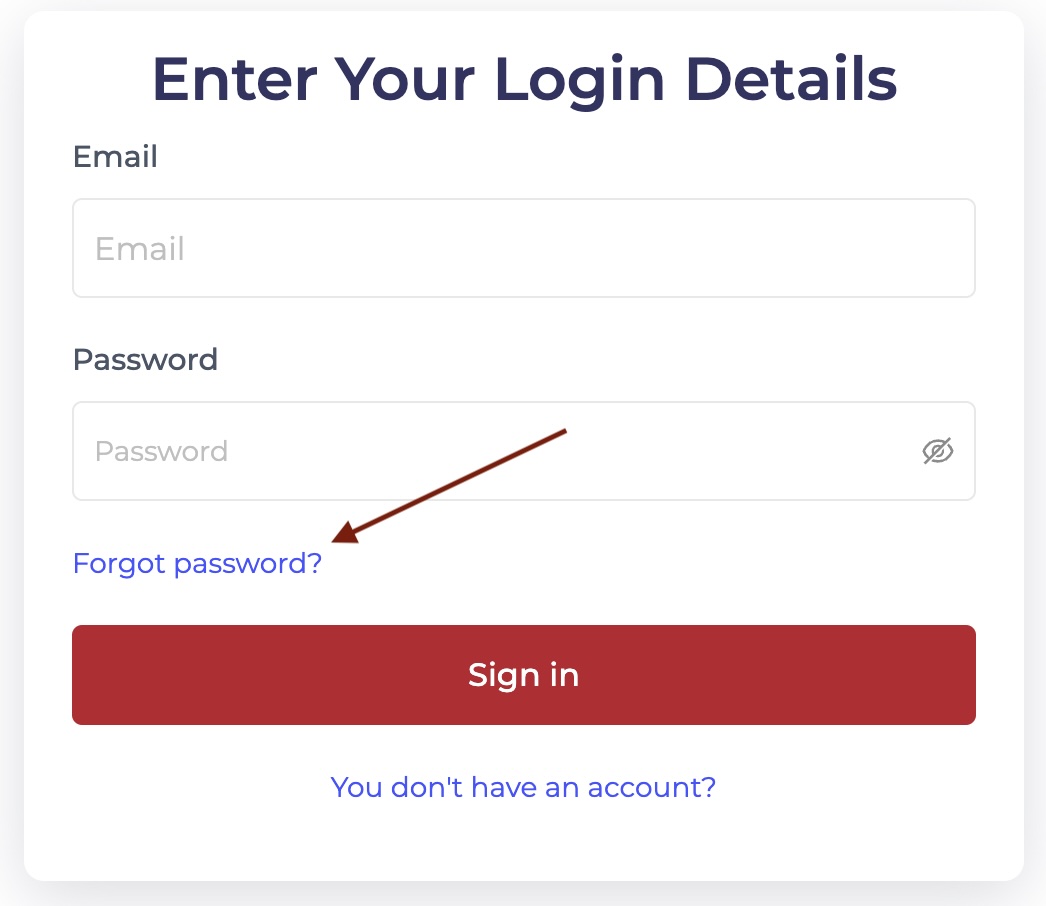
To begin the password reset process, you first need to locate the password reset option on the login page. This option is usually labeled as "Forgot Password?"
Click on this option to initiate the password reset procedure and proceed to the next steps to set a new password for your account.
Entering Your Email Address
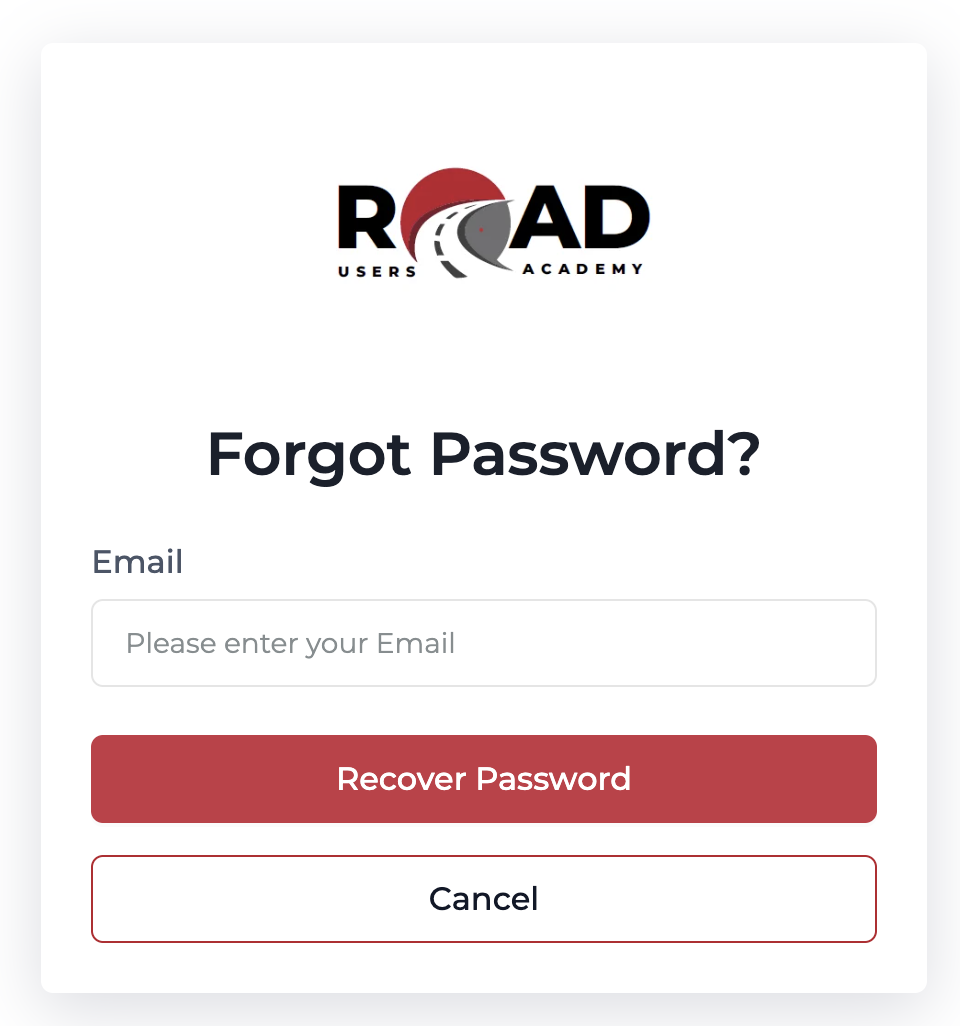
After clicking on the password reset option, you will be prompted to enter your email address associated with your account. Providing the correct information is essential to verify your identity and ensure that the password reset code is sent to the right recipient.
Checking Your Email for the Password Reset Code
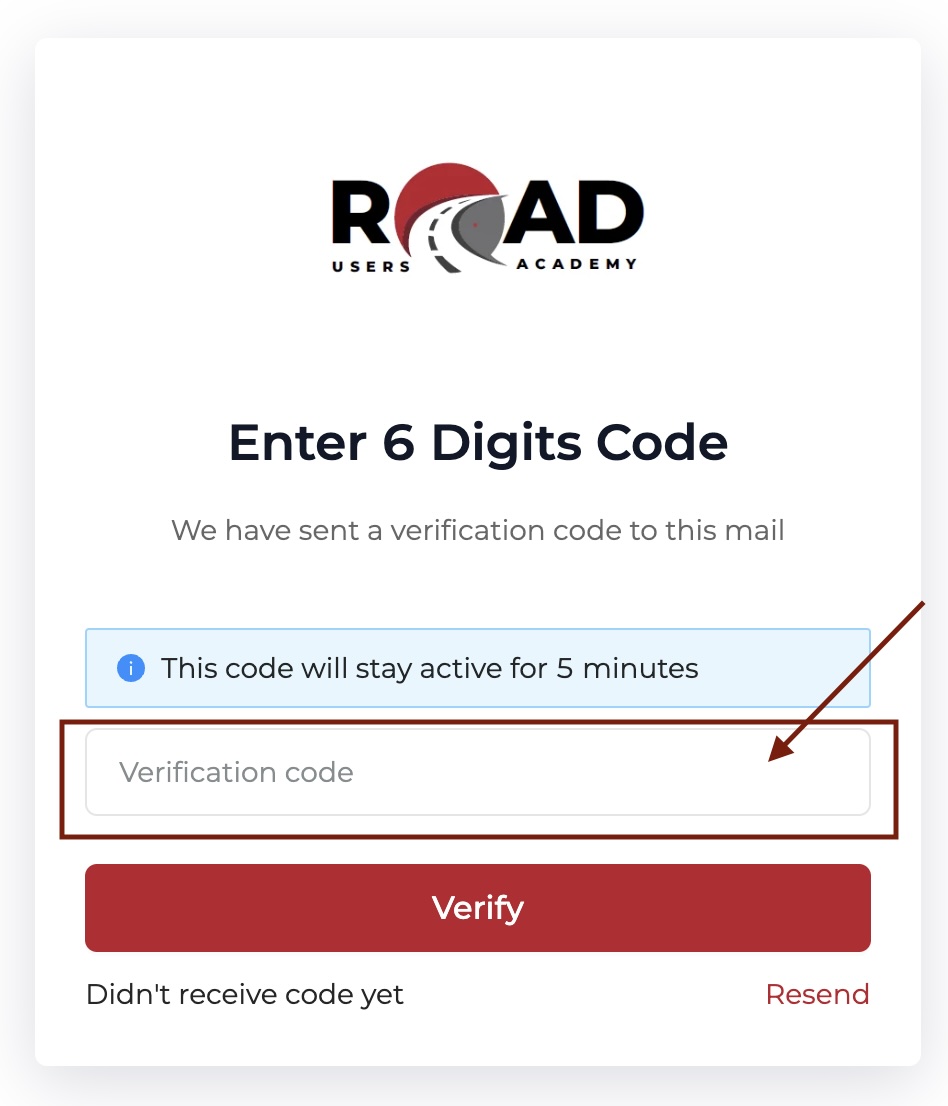
Once you have submitted your email address, check your email inbox for the password reset Code sent from Road Users Academy.

Copy the code and proceed back to the forgot password page.
Insert the code on the password reset page and click on Verify.
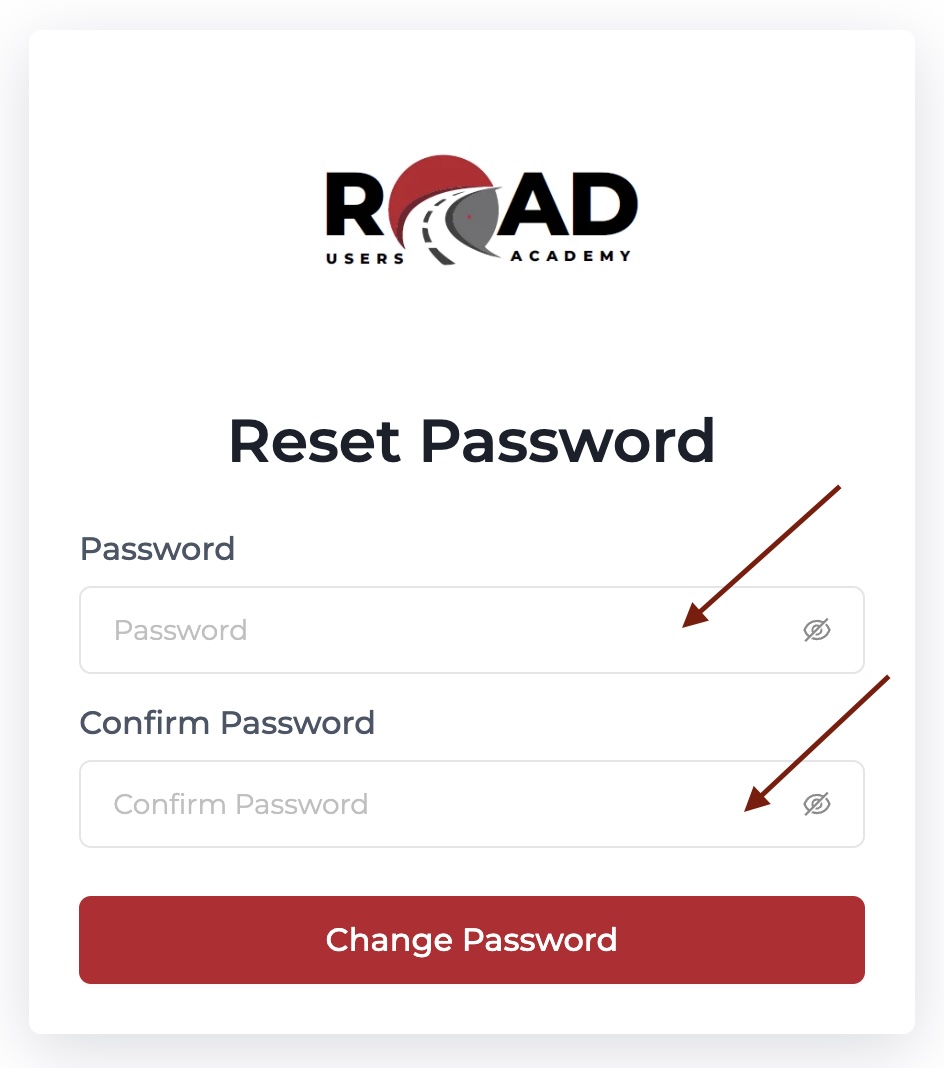
You will be prompted to enter your new password and also confirm the password
Saving Changes and Logging In
Once you have confirmed your new password, click on the “Change Password” button to update your account with the new password. Your account will now be secured with the updated password, providing you with peace of mind regarding its security.
Updating Your Password Regularly
As a best practice for account security, it is recommended to update your password regularly to prevent unauthorized access and enhance the overall security of your account. Changing your password periodically reduces the risk of potential security breaches and protects your personal information from cyber threats.